> ## Documentation Index
> Fetch the complete documentation index at: https://docs.slipway.sh/llms.txt
> Use this file to discover all available pages before exploring further.
# Members & roles
> How people join your org, what each role can do, and how invites work.
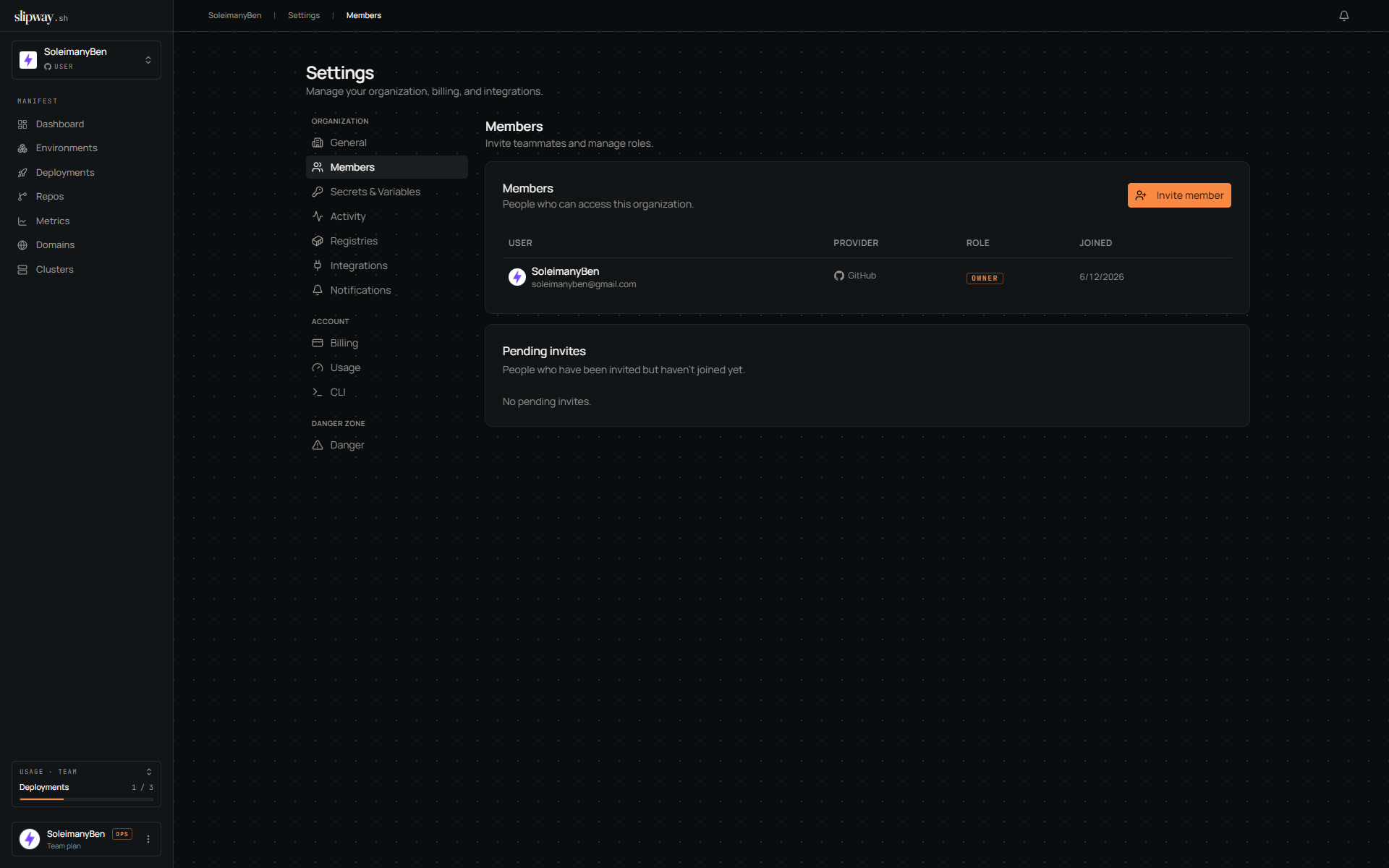
Every org member has exactly one role. Manage them under **Settings → Members**.
 ## How people join
**Automatically, via the upstream account.** When a teammate signs in with GitHub or GitLab and belongs to the same org/group your slipway org is linked to, slipway adds them as a **developer** — no invite needed. The check runs every sign-in, so new teammates pick up access the next time they log in. Removing someone upstream doesn't revoke their slipway membership automatically; do that here.
**Manually, via an invite.** For external collaborators who aren't in the upstream account, an admin sends an email invite or creates a one-time invite link (below).
## Roles
| Role | Read repos, deployments, logs | Trigger deploys | Manage secrets, variables, registries, domains | Manage members & billing |
| ------------- | ----------------------------- | --------------- | ---------------------------------------------- | ------------------------ |
| **Viewer** | yes | no | no | no |
| **Developer** | yes | yes | yes | no |
| **Admin** | yes | yes | yes | yes (except delete org) |
| **Owner** | yes | yes | yes | yes |
* **Viewer** is read-only — good for stakeholders who want visibility without the ability to change things. They can read variable values, but no role can read a secret's value once it's set.
* **Developer** is the typical engineer: deploy, manage secrets/variables, configure repo settings.
* **Admin** adds org-wide config — members, invites, registries, domains, billing.
* **Owner** adds the ability to delete the org. There can be more than one.
Change a member's role from the chip next to their name (admins and owners only). Removing a member doesn't tear down anything they deployed — deployments belong to the org. Anyone can leave from **Settings → Members → Leave organization**; the last owner must promote someone else first.
## Invites
To invite an external collaborator, click **Invite member**, pick a role, and choose how it reaches them:
* **Send an email** — enter their address and slipway emails them the accept link directly. The dialog also shows the link as a fallback in case the email doesn't arrive.
* **Share a link** — slipway returns a **one-time accept link** for you to pass along however you like (Slack, a ticket, a DM). Copy it then, since only its hash is stored afterward, and treat it like a password — anyone who opens it can join.
Either way, the recipient opens the link, sees the org and role they're being granted, signs in with GitHub or GitLab, and lands on the dashboard.
Invites expire after **7 days** and are single-use. Click **Revoke** to kill a link immediately if you sent it to the wrong person. An invite doesn't grant repo access on its own — that comes from the org's GitHub/GitLab installation.
**Seat limits.** Your [plan](/organization/plans) caps how many members an org can hold, enforced when you create or accept an invite. Teammates joining automatically through the upstream account are never blocked, but they do count toward the total on **Settings → Billing** — so an org that grows past its plan that way should upgrade.
## How people join
**Automatically, via the upstream account.** When a teammate signs in with GitHub or GitLab and belongs to the same org/group your slipway org is linked to, slipway adds them as a **developer** — no invite needed. The check runs every sign-in, so new teammates pick up access the next time they log in. Removing someone upstream doesn't revoke their slipway membership automatically; do that here.
**Manually, via an invite.** For external collaborators who aren't in the upstream account, an admin sends an email invite or creates a one-time invite link (below).
## Roles
| Role | Read repos, deployments, logs | Trigger deploys | Manage secrets, variables, registries, domains | Manage members & billing |
| ------------- | ----------------------------- | --------------- | ---------------------------------------------- | ------------------------ |
| **Viewer** | yes | no | no | no |
| **Developer** | yes | yes | yes | no |
| **Admin** | yes | yes | yes | yes (except delete org) |
| **Owner** | yes | yes | yes | yes |
* **Viewer** is read-only — good for stakeholders who want visibility without the ability to change things. They can read variable values, but no role can read a secret's value once it's set.
* **Developer** is the typical engineer: deploy, manage secrets/variables, configure repo settings.
* **Admin** adds org-wide config — members, invites, registries, domains, billing.
* **Owner** adds the ability to delete the org. There can be more than one.
Change a member's role from the chip next to their name (admins and owners only). Removing a member doesn't tear down anything they deployed — deployments belong to the org. Anyone can leave from **Settings → Members → Leave organization**; the last owner must promote someone else first.
## Invites
To invite an external collaborator, click **Invite member**, pick a role, and choose how it reaches them:
* **Send an email** — enter their address and slipway emails them the accept link directly. The dialog also shows the link as a fallback in case the email doesn't arrive.
* **Share a link** — slipway returns a **one-time accept link** for you to pass along however you like (Slack, a ticket, a DM). Copy it then, since only its hash is stored afterward, and treat it like a password — anyone who opens it can join.
Either way, the recipient opens the link, sees the org and role they're being granted, signs in with GitHub or GitLab, and lands on the dashboard.
Invites expire after **7 days** and are single-use. Click **Revoke** to kill a link immediately if you sent it to the wrong person. An invite doesn't grant repo access on its own — that comes from the org's GitHub/GitLab installation.
**Seat limits.** Your [plan](/organization/plans) caps how many members an org can hold, enforced when you create or accept an invite. Teammates joining automatically through the upstream account are never blocked, but they do count toward the total on **Settings → Billing** — so an org that grows past its plan that way should upgrade.